
Samsung MultiStar
Screenshots
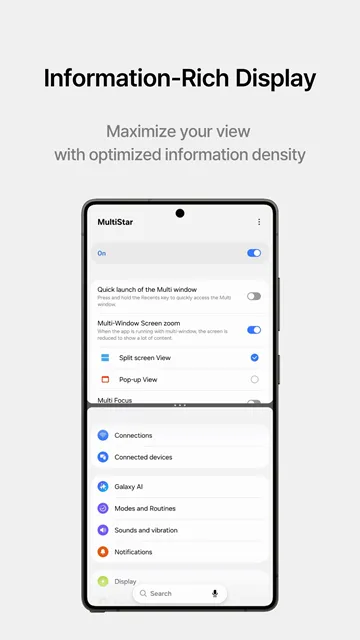
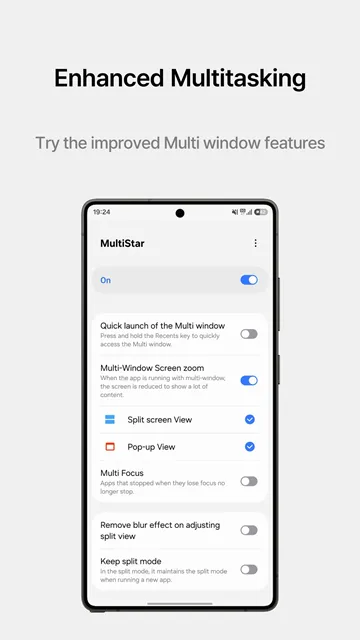
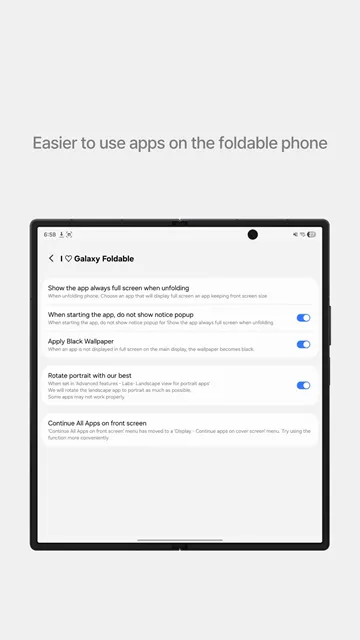
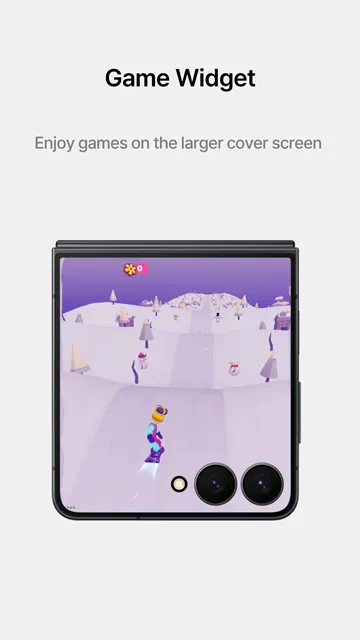
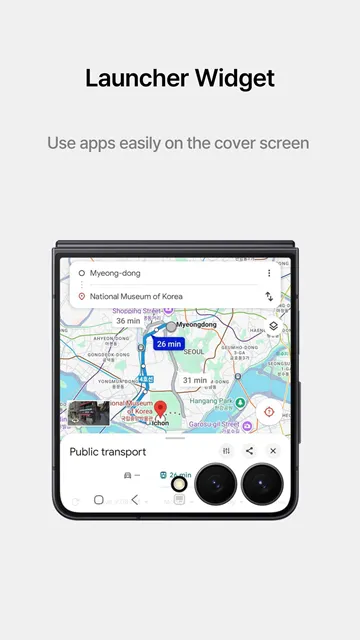
Samsung MultiStar is an essential tool for Samsung Galaxy device owners. It alters how you interact with multiple windows on your smartphone. Many users want to run two apps simultaneously without lag. Therefore, Samsung MultiStar offers the perfect solution for advanced mobile multitasking.
You can download the Samsung MultiStar APK to unlock hidden features on your phone. This package gives you absolute control over your display layout.
Consequently, your daily productivity will increase significantly. You will complete your daily digital tasks much faster than before.
What Is Samsung MultiStar and How It Changes Multitasking
Samsung MultiStar belongs to the famous Good Lock suite of customization tools. Samsung created this module to enhance the default window management system. For example, standard mobile systems restrict how apps behave in split screen. However, Samsung MultiStar removes these annoying restrictions immediately. You can force all apps to support split screen layout. This means even older apps will work seamlessly side by side.
Furthermore, Samsung MultiStar allows you to adjust the size of your floating windows easily. You do not need complex technical knowledge to use this tool. You just install the APK file on your Samsung device. After that, you toggle the features you prefer. The interface looks clean and straightforward. Because of this simplicity, anyone can upgrade their phone layout in seconds.
Many people prefer to use their phones for work and entertainment at the same time. For instance, you can watch a video while typing a document. Samsung MultiStar ensures that neither app pauses when you tap the other. This feature is called Multi-Window Stay Ahead. It keeps both processes active simultaneously. Therefore, you save time and eliminate frustration.
Additionally, the module changes how the system allocates memory to active screens. Standard devices often freeze background windows to save battery power. This aggressive freezing can disrupt your workflow during important tasks. Samsung MultiStar changes this behavior by forcing both windows to stay live. As a result, you experience zero delay when switching between active tasks.
Here are the main benefits of this multitasking change:
- You can copy information between apps without switching screens constantly.
- Your video streams will continue playing while you browse social media feeds.
- You can customize the look of your multi-window divider lines.
- The system resources adjust dynamically to support your active windows.
Core Features of the Split Screen Enhancement Module
The split screen mode receives a major upgrade through this customization utility. First, you can enable the Split Screen Zoom option. This option increases the visible area inside your active windows. It shrinks the status bar and navigation bar. Consequently, you get more screen real estate for your content. This change helps significantly on smaller phone displays.
Second, you can customize the action for the pop-up view gesture. You simply swipe down from the top corners of your screen. Then, the active app shrinks into a floating window. You can change the size of the swipe area. Therefore, you will not trigger the feature by accident. This gesture makes navigation incredibly smooth and fast.
Third, the utility introduces a brilliant dark mode option for split views. It matches your system theme perfectly. Additionally, you can adjust the transparency of your floating windows. This setting allows you to see the background app clearly. As a result, you track background information while working on the main task.
Moreover, you can minimize floating windows into small icons. These icons hover on your screen like chat heads. You can tap them to open the app instantly. This prevents your display from becoming cluttered with too many open windows. Therefore, you maintain an organized workspace while handling multiple duties.
Consider these additional features included in the package:
- Multi-window launcher shortcuts for quick access to app combinations.
- Custom background colors for the multi-window separator bar.
- Automated window resizing based on device orientation changes.
- Memory retention options that remember your last used split screen pairs.
Why You Should Use Samsung MultiStar on Foldable Devices
Owners of the Galaxy Fold and Galaxy Flip series gain massive advantages here. Samsung MultiStar offers specific optimizations for flexible screens. For example, the cover screen on flip phones has space limitations. However, Samsung MultiStar allows you to run any app on that small external display. You can play games or reply to messages without opening your phone.
Furthermore, the main display on foldable phones benefits from advanced column layouts. You can open up to three apps at the same time. Samsung MultiStar maintains the correct aspect ratio for each app. Therefore, your content does not stretch or distort. You get a desktop-like experience in the palm of your hand.
Another excellent option for foldables is the Flex Mode enhancement. When you bend the screen, the layout adjusts automatically. Samsung MultiStar forces stubborn apps to adapt to this bent screen state. Consequently, you can use your phone hands-free on any flat surface. This feature improves video calling and media consumption.
In addition, the tool prevents black bars from appearing on the sides of your apps. Large foldable displays often suffer from aspect ratio mismatches. Many older apps do not scale well on square screens. Samsung MultiStar stretches these layouts intelligently to fill the entire display. Thus, you enjoy an immersive visual experience without ugly layout borders.
Foldable device owners enjoy these specific enhancements:
- Direct app launching from the cover screen widget layout.
- Custom aspect ratios for apps that do not scale properly on wide displays.
- Seamless app continuity when unfolding the device during active tasks.
- Enhanced multi-finger gestures to trigger split view layouts instantly.
Step by Step Guide to Configure Advanced Multi Window Settings
Setting up the module takes very little effort if you follow the correct steps. First, you need to download the official APK file onto your device. Ensure that your phone allows installations from unknown sources. After the download completes, tap the file to install it. Then, open the main customization manager on your device.
Next, locate the specific multitasking module within the menu list. Tap on it to open the configuration dashboard. You will see a list of toggles and sliders. For best results, start by enabling the “I Love Galaxy Foldable” or “Multi-Window” options. These menus contain the most valuable features.
Finally, test the changes by launching two apps at once. You can adjust the settings in real time until the behavior suits your workflow. If you encounter any bugs, simply toggle the feature off and on again. This basic troubleshooting step usually resolves minor display glitches.
Additionally, you can backup your preferred settings to the cloud. This step protects your custom layouts if you reset your phone. When you switch to a new device, you can restore your configurations instantly. Therefore, you do not have to set up everything from scratch again.
Follow this quick checklist during your initial setup process:
- Verify that your device runs the latest official operating system version.
- Grant all necessary system permissions to the customization manager tool.
- Enable the developer options if you want extra layout adjustment metrics.
- Restart your smartphone to apply the core system changes cleanly.
How Samsung MultiStar Improves App Compatibility and Pop Up Views
Some apps refuse to open in split screen due to hardcoded developer rules. Samsung MultiStar bypasses these restrictions by modifying the runtime behavior. It forces the system to resize any app layout. Therefore, social media apps and banking utilities can run side by side. This capability expands your productivity options immensely.
Additionally, the pop-up view system becomes much smarter with this installation. You can save your favorite app pairs directly to the home screen. When you tap the shortcut, both apps open instantly in your preferred layout. This saves you from configuring the split view manually every single time.
Samsung MultiStar also manages the system memory efficiently during heavy multitasking. It prevents the operating system from closing background windows abruptly. Because of this optimization, you do not lose your unsaved progress. Your phone runs smoothly even with multiple active windows open.
Furthermore, the tool allows you to control the sound of individual windows. Standard phones mix all audio tracks together when multiple apps run. This creates a noisy and confusing experience. Samsung MultiStar lets you mute background windows while keeping the main window audio active. Consequently, you can watch a tutorial video while playing silent background music.
This compatibility enhancement offers several clear benefits:
- Full support for landscape orientation in apps that only support portrait mode.
- Customizable pop-up window sizes that remember your exact position preferences.
- Quick minimize buttons that turn active windows into floating chat heads.
- Independent volume controls for apps running simultaneously in split screen.
Tips to Optimize Your Device Performance While Multitasking
Running multiple windows simultaneously requires a lot of processor power and system RAM. Therefore, you must manage your phone resources carefully. First, close unnecessary background apps before starting a heavy multitasking session. This action frees up volatile memory for your active windows. Your device will respond much faster as a result.
Second, lower the transparency effects inside the customization settings. High transparency values require extra graphic processing calculations. By reducing this effect, you save battery life and reduce heat generation. Your phone remains cool during extended usage periods.
Third, keep the customization utility updated to the latest version. Developers frequently release performance patches and bug fixes. These updates ensure full compatibility with the latest system software. Consequently, you avoid unexpected crashes and enjoy a stable user experience.
Finally, avoid running two graphic-intensive tasks at the exact same time. For example, do not play a 3D game while exporting a high-definition video. This heavy workload can cause thermal throttling on your smartphone. Instead, pair heavy apps with light tasks like text editors or web browsers.
Keep your device running optimally by following these guidelines:
- Clear your device system cache once a month to remove temporary files.
- Limit your active split screen setups to two apps on older phone models.
- Turn off heavy live wallpapers while using advanced multitasking configurations.
- Monitor your battery health metrics to ensure stable power delivery under load.
Conclusion
In conclusion, managing your phone layout becomes simple with the right tools. Samsung MultiStar transforms standard multitasking into a seamless, powerful experience. It eliminates the strict limits placed on window sizes and app combinations. Whether you use a standard smartphone or a foldable device, the benefits are clear. You gain speed, flexibility, and better control over your daily screen time. Download the APK today to unlock the true potential of your display.